Replace Laptop battery in NZ

Category: Battery Tips

Useful laptop battery of common sense

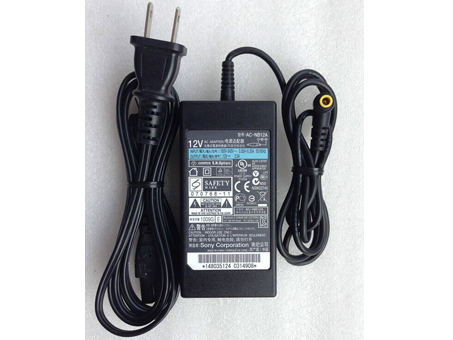
  • Sony AC-NB12A power adapter for Sony BRC-Z700 BRC-H700 Vedio Camera 12V 2.5A 30W

    Sony ac-nb12a Laptop adapter – Product information

  • LENOVO L14C3K31 notebook battery for Lenovo Yoga Tablet2 1050F YT2-1051F

    Discount lenovo L14C3K31 battery NZ as a replacement battery for lenovo. This Li-ion battery replace L14C3K31 for Lenovo Yoga Tablet2 1050F YT2-1051F meet or exceed the original battery specifications.

    lenovo

    Lenovo L14C3K31 battery Can Replace the Following Part Numbers:

    L14C3K31

    Lenovo L14C3K31 Replacement Battery Fits Models:

    LENOVO YOGA Tablet 2 1051F Series

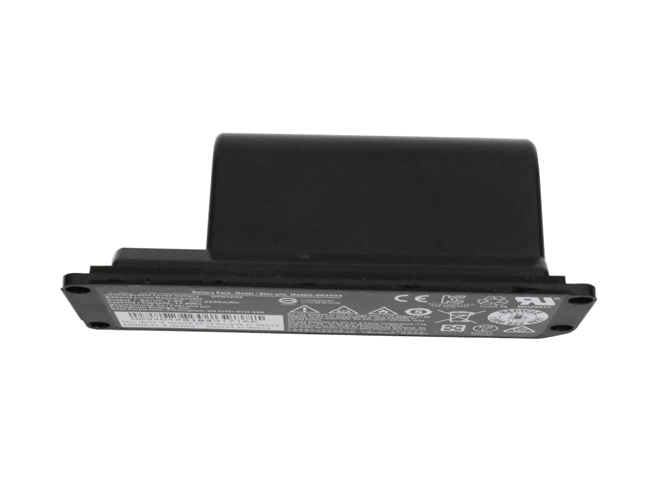
  • Bose 061384 notebook battery for BOSE SOUNDLINK Mini Series

    Discount bose 061384 battery NZ as a replacement battery for bose. This Li-ion battery replace 061384 for BOSE SOUNDLINK Mini Series meet or exceed the original battery specifications.

    Bose Soundlink Mini I Series

  • How do I increase my laptop’s battery lifetime? Should I keep my laptop plugged in all the time or discharge the battery in regular intervals?

    1. Don’t leave your battery plugged in all the time. Unless you own a Dell laptop, which means you can disable battery charging. I have an ASUS laptop, meaning I usually keep the battery at 40% and let it be in my cupboard. We do have electricity supply breaks, meaning my laptop shuts down abruptly. Yes, I do run the risk of corrupting my data, but it hasn’t affected me adversely much, so I’ve learnt to live with the compromise.

    2. Never let your battery take heat. ASUS has a reasonably insulated battery bay, meaning even after a few gaming sessions with my battery plugged, I touch the battery to find it to be barely above room temperature. However, my battery would stay at 100% charge then, and that’s detrimental to your battery. I know of a guy who owns a Dell XPS – the guy used to literally suffocate his laptop by playing games while it was on a pillow with his battery plugged in – and his battery’s useless barely a year after he bought the laptop.

    3. Don’t put high loads while running on battery power.
    Lithium-ion batteries like to be charged and discharged slowly. I haven’t EVER played games while my laptop is running on battery power, or run strenuous software – it’s always for using the internet or watching movies. I plug in a LAN cable to my laptop from the WiFi router because I sit at the same table – that saves overheads and energy. WiFi is pretty draining on batteries.

  • What is the danger of charging the battery when plugged in all day?

    That depends. Is your laptop new enough and smart enough to compensate for this? For example… a new Toshiba with the Eco Battery monitor running that won’t charge the battery unless it drops below 80%? If your computer is like that… where it has a specific feature that will protect your battery when the unit is plugged in all the time…. then no it isn’t harmful.

    However, if your laptop is like the vast majority of laptops out there and in use, then you would be micro-charging the battery by leaving it plugged in all the time with the battery present. This would shorten the life of the battery by reducing the total number of charge cycles the batteries in the battery pack have available.

    Without know the make and model of your laptop, it is hard to say.

    So…. if you want to be on the safe side, charge your battery and remove it from the laptop when it is at 100%. Don’t charge the battery again until the charge has dropped to about 25% to 30%.

  • Top tips for extending the battery life of your laptop

    1. Dim your screen
    The screen is one of the most power-hungry parts of the laptop. It takes serious amounts of battery power to keep your display looking clear and bright. Saving this power is simply a question of turning the brightness down.

    The screen brightness button is usually located as a second function of one of the F keys, and is represented by a little sun symbol with up and down icons. To use it, just hold down the correct function key and then choose up or down.
    2. Change power settings
    Windows 10 comes with some great power features, which enable you to eke out the best performance when you’re plugged into the mains, and optimise battery life when on the move.

    Type ‘power options’ into the Start Search box and choose ‘Power saver’ from the list. Windows 10 also has more methods for saving battery life. These include settings for powering off the monitor and kicking into sleep mode more quickly.
    3. Switch off Wi-Fi
    One of the biggest battery sappers is the wireless networking capabilities built into most laptops. Wi-Fi drains the battery by constantly drawing power from the battery and, when not connected, looking for networks.

    When you’re using your laptop away from the grid, the likelihood is you’re away from wireless networks, so you can turn this device off. Many laptops have a function button that enables you to turn off the wireless adaptor manually to save yourself the unnecessary waste, but older laptops often don’t have this.

    If this is the case, open up the Notification Center by clicking the speech bubble icon on the far-right side of the taskbar, and click on ‘Wi-Fi’ to turn it off.
    4. Turn off peripherals
    Using USB peripherals can put a drain on your system, because your motherboard has to power them, so unplugging everything saves juice. USB sticks, mice and webcams are common offenders, so copy all your information across and eject your devices as soon as possible, and put up with laptop track pads over your USB mouse.

    Many laptops have function buttons to turn off the built-in webcam, which drains the battery if given the chance. And switch your speakers to mute if you’ve no need for sound – your laptop beeping every time it gets an email or boots Windows can be a drain.
    5. Eject your disc drives
    Having a disc spinning in the drive is a huge drain on resources, and many programs constantly do this. Simply eject your discs before you switch to battery power to gain vital extra minutes from your working day.

    Most modern laptops don’t come with disc drives installed these days, but if yours does, it’s worth making sure it’s empty when you’re on the move.
    6. Invest in some hardware
    Advertisement

    Good practice can go some way to extending your battery life, but if you need to use your laptop throughout your working day, you’re going to need some help.

    Most laptops come with a six-cell battery, but many manufacturers offer eight- or even 12-cell optional upgrades, which can double your power.

    The alternative to expensive laptop batteries are portable laptop battery chargers, which give you valuable extra hours for all your devices. These are usually compact battery units that have adapters for most laptops and mobile phones, which is portable enough to be placed in a bag and has enough capacity to double the length of your charge.

    Check out our list of the best portable laptop battery chargers and power banks for our pick of the best devices to keep your laptop charged

    7. Disable features
    Windows 10 has some handy built-in features, but many put demands on your system that are unnecessary when working on the move. Take the simple measure of turning off graphical effects when you’re on the move to make your laptop more efficient.

    8. Battery care
    Lithium-Ion batteries don’t need a complete discharge (contrary to popular belief) but also you should use a battery once you’ve charged it.

    If you have a spare you keep topped up, use that instead of your main regularly. If you have an older non-Lithium-Ion battery, you’ll need to regularly discharge it.

  • How to Recondition a Laptop Battery

    1
    Insert the battery into the laptop. Plug in the laptop and allow the battery to fully charge. Restart the computer.

    2
    Disable hibernation temporarily. In Windows XP, for example, click Start, then “Control Panel,” then “Power Options.” Select the “Hibernate” tab, then uncheck “Enable Hibernation.” Click “OK” to save the settings.

    3
    Change settings to discharge the battery. Click on “Control Panel,” “Performance and Maintenance,” “Power Options” and then “Power Schemes.” Make a note of the settings under the “Plugged In” and “Running on Batteries” columns so you can reset them later.

    4
    Set all six options to “Never” from the drop-down lists. Click “OK” to save the settings and disable power management.

    5
    Unplug the laptop, but do not turn it off. Run the laptop until the battery is completely discharged (the Power/Standby light will blink) and the laptop shuts down.

    6
    Plug the laptop back in, allow it to fully charge again, then restart the computer. Enable hibernation and enter your original performance settings in “Power Schemes.”

  • Tips and help with maximizing your laptop battery life

    Full initial charge
    After purchasing a new laptop computer or battery for your laptop, we recommend that the battery be charged for no less than 24-hours. A 24-hour charge makes sure the battery is fully charged and helps with the batteries life expectancy. Once it is fully charged, you should not discharge it fully, if possible.

    Remove battery if not in use for a long period
    If you are mostly using the laptop computer while it is plugged into a wall outlet keep the battery out of the computer.

    If you do not plan on using your laptop for more than a month the battery should be removed from the computer, even if it is kept off.

    After putting the battery back in after it has not been used we suggest fully charging it before letting it run off the battery again.

    Fully discharge and recharge
    If your battery is not a Li-ion battery it is always recommended to fully discharge and recharge your battery at least once every month.

    Avoid extreme temperatures
    Not only is it good for your battery but it is also for your laptop to keep it out of extreme hot or cold temperatures. For example, do not leave your laptop in your car during a hot summer day.

    Clean the contacts
    Clean your laptop battery contacts with a cotton swab and alcohol every few months.

  • How to solve the problem of win7 laptop battery charge?

    1. Control Panel – Power Management Options – High Performance – Change the schedule settings.

    2. Find [Change Advanced Power Settings] in the pop-up window.

    3. Adjust the brightness of the plan to be max. Wireless Adapter Settings – Energy Saver mode, all set to [Maximum Performance].

    4. Turn off the low battery notification. This is very important. Low battery level notification – off.

    5. Click Apply, OK, then close all computer programs, wait for the battery to fully charge, and make sure the computer is using an external power supply.

    6. Unplug the power cord and consume power in the standby state until it is turned off. Then plug in the power cord directly, then turn it on again.

    The correction method for the laptop battery is shared here, without using any third-party software, the operation is very convenient! If your laptop battery is always full, try correcting your laptop battery.

  • Pure version Win10 Lenovo laptop battery 60% stop charging solution

    1. Left click on the “Battery” icon in the lower right corner of the screen. In the options that appear, select “Go to Lenovo Settings Center”;

    2. Drag the progress bar down to find the option for “Battery Charging Threshold”

    3, open the “battery charging threshold” switch, will pop up the dialog prompt
    4. Select the “Continue” button, the dialog box disappears, and a progress bar for setting the charging threshold appears.
    note:
    1, the threshold is set to only a percentage of the value, the interval is 5%, such as 95% or 90%, (integer multiple of 5);
    2. The battery starts to charge when it is lower than the stop charging threshold by about 6%;
    3. In “Programs and Features”, the software name is: Lenovo BatteryGauge
    After the above steps are modified, we can successfully restore the normal charging mode of the laptop! Friends who have encountered similar situations, come and take a look at it!