1, first open the computer driver wizard
2. After opening, click to detect the computer driver;
3. Click “Hardware Detection” at the top after checking.
4. Select “Battery Information” on the left;
5, you can see the battery loss of the battery.
The above is the way to check the laptop battery loss. If the user wants to maintain the battery, he can use the power adapter to power on, instead of using the laptop battery to discharge. The laptop battery is a lithium battery, and its life is based on charge and discharge. of.
Category: Battery Tips
Useful laptop battery of common sense
-
How to detect laptop battery life? View laptop battery loss methods
-
Win7 pure version of the system laptop battery how to save electricity
The first trick brightness setting
The display screen is also a large power consumer, we can reduce the brightness of it to achieve the purpose of power saving. First, right-click on the desktop, then select the “nVIDIA” or “ATi” control panel from the pop-up menu, and lower the brightness value in the “Brightness” option.
After testing, the editor can save about 3W power consumption after lowering the screen brightness, which is equivalent to reducing the standby function by 14%.The second trick is to turn off unnecessary peripheral devices.
First, enter the BIOS settings of the notebook (press F2 to enter during startup), and in the Advanced option, turn off some of the peripheral devices that are not available at the conference (Disabled). These devices are: Wireless LAN, mouse, and camera. After turning off these unnecessary devices, the editor found that it can save about 2.2W of power consumption, which is equivalent to a 10% reduction in standby function.The third trick is to close the CPU core.
Many friends think that turning off the multi-core of the books can also save power. Is this the case? We also did a test, shutting down the three cores and leaving only one job. And surprised! In fact, the stupid power consumption has not decreased much. Turning off the CPU core will only increase the load on the processor (such as 4 people’s live, become a person) and does not reduce functionality.The above is the tutorial on how to save power in the win7 pure version of the notebook battery. The above method can help you to extend the power supply time of the notebook when you need to use the laptop urgently, saving a total of 24% of power consumption. Of course, the best way is to connect the power supply or prepare an auxiliary battery to prevent power outages, so you won’t be afraid even if the game is played for a long time.
-
How to view the health status of win10 laptop battery?
1. Right click on the Win logo in the lower left corner of the screen and select “Command Prompt (Administrator)” from the pop-up menu.
2. At the command prompt, type powercfg /batteryreport /output “D://ianChi.html”. Among them, the storage path of the battery usage report file in the bold part can be customized, and you can also save it to other locations;
3. After the carriage return, the system will prompt the file to be saved successfully;
4. Open the corresponding folder and double-click to open the battery usage report file.
5. Under Installed batteries, you can see the factory design capacity of the battery and the current full charge capacity (that is, how much power can be stored when the battery is fully charged. If the computer is used for a long time, this will be different from the factory design capacity. Degree of loss);
6. Under the Recent usage item, you can see the battery charge and discharge situation in the last three days (including when it is activated and when it is in standby mode);
7. Next is the statistical chart of the usage.
8. Finally, focus on the last battery life estimates. Here is an estimate of how long the battery life can last.
After installing the tutorial step content settings, win10 laptop battery health status knows how it is, you want to know the status of your laptop battery, directly refer to this method to view it. -
How and when to charge your tablet battery
First charge: When you first unbox your tablet, you should approach the first charge differently, depending upon the type of battery the tablet has:
Lead acid: The battery should be fully charge. Apply a top-off charge before using.
Nickel-based: Charge the battery 14-16 hours before the first use.
Lithium Ion: Apply a top-off charge before the first use.
Full vs. partial charge: Some batteries actually do poorly if you only give it a partial charge.
Lead acid: You must always give this battery a full charge, as a partial charge can create sulfation.
Nickel-base: A partial charge is good.
Lithium Ion: A partial charge is actually better than full charge.
Full discharge: There are types of batteries that actually prefer a complete discharge now and then.
Lead acid: A deep discharge can damage the battery.
Nickel-base: Apply scheduled discharges only to prevent the battery from retaining memory.
Lithium Ion: A deep discharge can damage the battery.
Battery calibration: Some batteries do not need calibration. Here are the details:
Lead acid: Not applicable.
Nickel-base: Apply a discharge/charge when the fuel gauge becomes inaccurate. Repeat every 1-3 months.
Lithium Ion: Apply a discharge/charge when the fuel gauge becomes inaccurate. Repeat every 1-3 months.
Use while charging: Is it okay to have your device on while charging it?
Lead acid: It’s okay to have device on when charging.
Nickel-base: It’s always best to turn the device off during a charge, since a parasitic load can either alter full-charge detection, overcharge the battery, and/or cause mini-cycles.
Lithium Ion: It’s always best to turn the device off during a charge, since a parasitic load can either alter full-charge detection, overcharge the battery, and/or cause mini-cycles.
Unplugging when charged: Is it necessary to unplug your device once the charge is complete?
Lead acid: This depends on the charger. If the charger has correct float voltage, then it’s fine.
Nickel-base: Always remove your device after a few days in the charger.
Lithium Ion: This is unnecessary, because the charger turns off.
Temperature: How does temperature effect charging?
Lead acid: It creates a slow charge from 32-113 degrees Fahrenheit / fast charge from 41-113 degrees Fahrenheit / the threshold is lowered above 77 degrees Fahrenheit.
Nickel-base: It creates a slow charge from 32-113 degrees Fahrenheit / fast charge from 41-113 degrees Fahrenheit / the battery will not fully charge when it’s hot.
Lithium Ion: Do not charge below freezing. Do not charge when above 122 degrees Fahrenheit.
Of course, this doesn’t take into consideration the effects of various types of software or networks (such as 4G, which will quickly drain a battery). Ultimately, if you use your battery with intelligence, it will reward you with a long life. -
The life of your tablet battery
Much of the change in batteries grew out of the necessity of safety in portable devices. Because mobility means taking a device through severe heat, cold, shock, and vibration, the batteries had to designed for maximum safety and longevity. Although many may doubt this claim, storing energy of several kilowatts can be dangerous, especially when stored in a device that’s constantly on the move and often dropped, shaken, and exposed to harsh environments.
Since these batteries are tucked safely away from the user, it’s up to the physical and software systems — the Battery Management System (BMS) — to care for them. The BMS handles some fairly complex tasks, such as managing the integrity of a battery when cells begin to fail (usually due to the battery lifespan). Unfortunately, the BMS can’t do everything. The user of the device still has to take care of the mobile to ensure extended and safe battery life.
Here are three main tips that should easily apply to all batteries in mobile devices:
Temperature: Do not expose your device to extreme temperatures. Cooler temperatures prevent battery corrosion, so it’s always best to keep your device from overheating. It happens. Working with a tablet in your lap, you can feel the warmth heating up your legs. That means the battery is also getting hot. Work with your tablet in such a position that heat can easily dissipate. Discharge:It’s a myth that modern batteries need a full discharge to retain “memory” (this only applies to a nickel-based battery pack). Every full cycle wears the battery down by a small amount. So, smaller discharges are better. Try not to let your battery go beyond the half-way point before applying a charge. Abuse: This is a no-brainer, but people do get careless, and every drop of that tablet runs the risk of damaging the battery within. This also applies to improper discharges. These types of discharges can happen when a process gets out of control and is allowed to continue on, which quickly runs down the battery. If you see this happening (if the tablet starts responding slowly), find the rogue process and kill it or restart the tablet.
-
7 tips to extend your tablet’s battery life
Step 1: Find out what’s sapping your tablet’s power
Android provides a quick and easy way to see what’s draining most of your tablet’s power. Go to Settings > Battery. This will show you a bar graph of the different hardware, apps and processes that are putting the most drain on your battery. The greatest drain is almost always the screen, as powering the backlight for your tablet’s large display uses a lot of energy. So where possible, turn it off (while using the tablet to play music, for example).
Step 2: Turn the screen brightness level down
Adjusting the brightness level of your tablet’s screen can save a lot of battery power. To do this, open Settings > Display >Brightness. A pop-up window will display a slider which you can use to change the brightness level. If the slider isn’t visible untick the box marked Automatic Brightness. Reduce the brightness to a level that’s less intense but still comfortable for you to read text on your screen without straining your eyes.
Step 3: Reduce the screen time out
Reducing the amount of time your screen stays lit after you’ve stopped interacting with your tablet is another good way of slowing battery drain. Return to the Settings > Display menu and select Sleep. Reducing this setting tells your tablet to turn off the screen after a set period of inactivity. The shorter the time you select, the less power your display will use. Try changing it to a setting of two minutes. That way you’ll avoid sapping its battery life if you leave it unattended.
Step 4: Turn off unwanted connections
Wireless network technologies such as wi-fi and Bluetooth also consume quite a bit of power, so if you’re not using them it’s best to turn them off. This is especially true of Bluetooth, which many people never use on their tablet yet still leave turned on. Go to Settings and select Bluetooth under the Wireless & Networks heading. Flick the switch to Off to disable Bluetooth. If you’re using your tablet on a long bus or train journey – or anywhere there’s no wi-fi reception – you should also turn off wi-fi to save power. Open Settings and switch the wi-fi toggle switch to Off.
Step 5: Avoid using live wallpapers and widgets
Android’s Live Wallpapers and Widgets require processing and graphics power to run so put extra drain on your battery. It’s a relatively minor amount, but if you do want to absolutely maximise your tablet’s battery life you may want to get rid of them. Delete widgets from your homescreen by tapping and holding on them before swiping them up to the Remove icon. To change your wallpaper, tap and hold on an empty part of your homescreen and choose Wallpaper from the pop-up menu.
Step 6: Fully discharge the battery
The lithium ion batteries used in almost all Android tablets don’t suffer the over-charging problems of older Ni-Cad batteries, so they don’t always need to be run down completely to stay at their best. However, to keep the battery’s power meter correctly calibrated it’s still a good idea to let your tablet run out of battery power every 30 charges or so. If you use it most days, aim to run it down for once a month or so.
Step 7: Turn off Auto-sync
There are various apps and services on your tablet that automatically sync data with online servers, for storing contact information, providing Facebook alerts and sending email to your tablet. These syncing processes can drain power, especially if they’re pulling in a lot of information.
You can see which accounts are set up to auto-sync by opening Settings and choosing Accounts and Sync. If there are any you don’t want or need to sync in the background just tap on their name and untick the Sync option.
-
Brand New Battery For DELL VVONF N5YH9
Brand New Battery For DELL VVONF N5YH9, laptop battery specifications(Li-ion, 8700MAH/97WH/9Cell ,11.1V(Wider than 65WH)), lowest price and 30 days money back, 1-year warranty. 100% compatible with Dell Latitude E5440 E5540 Series.
Battery » VVONF N5YH9DELL VVONF N5YH9 Battery Pack [8700MAH/97WH/9Cell , 11.1V(Wider than 65WH)]
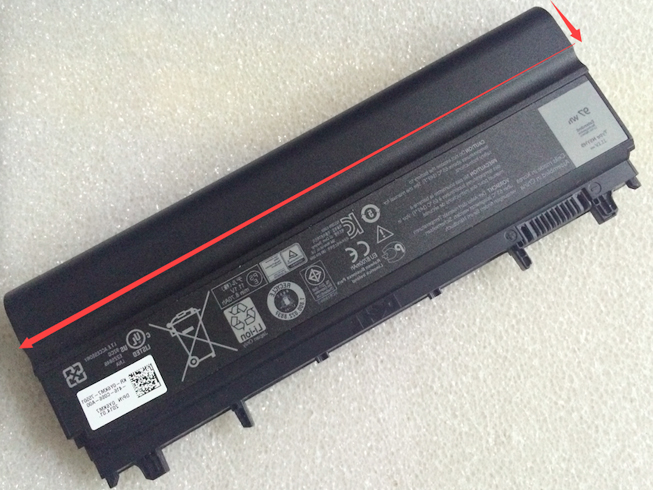
Teach you how to do here:
1. When first time using DELL VVONF battery, Please carefully read the user manual about Battery maintain parts.
2. Please fully charge at most 12 hours in first DELL VVONF battery charge time. Bcause it is need three/four times for charge/discharge cycles to get the maximum capacity of battery.
3. If without using notebook long time(more than 3 weeks) or found that your DELL VVONF battery charge/discharge time become shorter and shorter, you have to fully discharge the battery before next time charge again.
4. It is better to keep the laptop power off during charge the DELL VVONF battery pack. And don’t unplugged power or using your notebook during the battery half-way charge. The best time using is 30 minutes fully charge later.
5. Keep your DELL VVONF battery far away from damp,exposure,and erosion some chemical liquids and others to avoid making battery short-circuit.DELL VVONF N5YH9 Can replace the following part numbers:
451-BBID 451-BBIE 451-BBIF FT6D9 3K7J7 970V9 9TJ2J N5YH9 VJXMC VVONF M7T5F WGCW6 0K8HC 1N9C0 7W6K0 F49WX NVWGM CXF66 DELL VVONF N5YH9 Fits the Following Models:
Dell Latitude E5440 Series
Dell Latitude E5540 SeriesQ:How do I extend the life of my laptop battery?
- + New DELL VVONF N5YH9 Battery Pack must be fully charged before use.If you don’t use your laptop for a period of time,you must fully discharge then recharge the DELL battery.
- + Always use a DELL laptop on a hard surface. Don’t put it on your lap (despite its name) or on thermal insulating materials such as cushions. If you like to work in bed with your laptop, I recommend using a laptop table. I have this one, and I am quite content with it.
- + Try to avoid charging the battery while you are working with the laptop. Charging the DELL batteries increases your laptop’s temperature. The problem is that the CPU, the graphics card and the hard disk also heat up your laptop, which adds to the temperature increase experienced when charging the VVONF battery. Many vendors deliver their laptops with software that allows you to disable charging. You also can remove the DELL battery while you are working on AC current.
- + Make sure the laptop’s ventilation can always work properly. Don’t place objects before the ventilation systems opening. Don’t run or charge the laptop while it is in its case.
- + Don’t leave the laptop in the car or under the sun in summer. Use a bike. It keeps your 8700MAH/97WH/9Cell 11.1V(Wider than 65WH) DELL VVONF N5YH9 laptop battery cool and your own battery healthy. And too much sun exposure causes only skin cancer anyway.
DE:VVONF Akku Billiger Ersatzakku Dell Latitude E5440 E5540 Series
Batterijen Sales Nederland / België Dell VVONF ACCU >> Dell ACCUProducts Fast Shipping
Laptop power adaptors and chargers are necessary accessories that enable the charging of such portable devices. Adaptors and charges aren’t created equal, which is why you should always be looking for premium quality. Each of the Laptop Battery Express adaptors has been chosen because of its quality and affordability. You can rest assured that you’re getting access to some of the best replacement items on the market. We have laptop power adaptors for a vast range of brands and models.Discover laptop power adaptors that will be just right for you.
You are in the biggest replacement laptop battery and laptop ac adapters online store, We offer more than 18000 types laptop battery, compatable more than 2000000 laptop models, related 180 top laptop brand. We specialize in replacement laptop batteries and Laptop-oplader for most top brand laptop on the market, Such as Acer, Apple, Asus, Dell, HP, IBM, Sony, Toshiba, Samsung and so on.
-
Brand New Battery For SAMSUNG AA-PLVN8NP
Brand New Battery For SAMSUNG AA-PLVN8NP, laptop battery specifications(Li-ion, 6050MAH/91WH ,15.1V), lowest price and 30 days money back, 1-year warranty. 100% compatible with Samsung ATIV Book 8 Touch NP880Z5E-X01.
Battery » AA-PLVN8NPSAMSUNG AA-PLVN8NP Battery Pack [6050MAH/91WH, 15.1V]
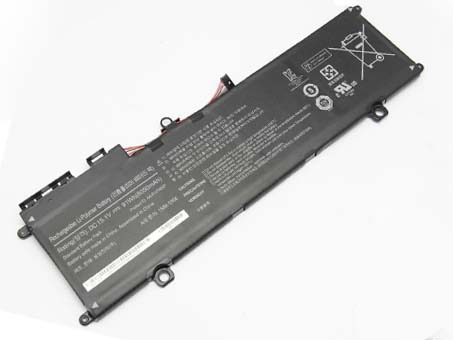
Teach you how to do here:
1. When first time using SAMSUNG AA-PLVN8NP battery, Please carefully read the user manual about Battery maintain parts.
2. Please fully charge at most 12 hours in first SAMSUNG AA-PLVN8NP battery charge time. Bcause it is need three/four times for charge/discharge cycles to get the maximum capacity of battery.
3. If without using notebook long time(more than 3 weeks) or found that your SAMSUNG AA-PLVN8NP battery charge/discharge time become shorter and shorter, you have to fully discharge the battery before next time charge again.
4. It is better to keep the laptop power off during charge the SAMSUNG AA-PLVN8NP battery pack. And don’t unplugged power or using your notebook during the battery half-way charge. The best time using is 30 minutes fully charge later.
5. Keep your SAMSUNG AA-PLVN8NP battery far away from damp,exposure,and erosion some chemical liquids and others to avoid making battery short-circuit.SAMSUNG AA-PLVN8NP Can replace the following part numbers:
AA-PLVN8NP SAMSUNG AA-PLVN8NP Fits the Following Models:
Samsung ATIV Book 8 Touch, NP880Z5E, NP880Z5E-X01, NP880Z5E-X01AU, NP880Z5E-X01CH, NP880Z5E-X01DE, NP880Z5E-X01HK, NP880Z5E-X01NL, NP880Z5E-X01PL, NP880Z5E-X01RU, NP880Z5E-X01SE, NP880Z5E-X01UB, NP880Z5E-X02CA, NP880Z5E-X02NL, NP880Z5E-X02SE, NP880Z5E-X02UK, NP880Z5E-X03CAQ:How do I extend the life of my laptop battery?
- + New SAMSUNG AA-PLVN8NP Battery Pack must be fully charged before use.If you don’t use your laptop for a period of time,you must fully discharge then recharge the SAMSUNG battery.
- + Always use a SAMSUNG laptop on a hard surface. Don’t put it on your lap (despite its name) or on thermal insulating materials such as cushions. If you like to work in bed with your laptop, I recommend using a laptop table. I have this one, and I am quite content with it.
- + Try to avoid charging the battery while you are working with the laptop. Charging the SAMSUNG batteries increases your laptop’s temperature. The problem is that the CPU, the graphics card and the hard disk also heat up your laptop, which adds to the temperature increase experienced when charging the AA-PLVN8NP battery. Many vendors deliver their laptops with software that allows you to disable charging. You also can remove the SAMSUNG battery while you are working on AC current.
- + Make sure the laptop’s ventilation can always work properly. Don’t place objects before the ventilation systems opening. Don’t run or charge the laptop while it is in its case.
- + Don’t leave the laptop in the car or under the sun in summer. Use a bike. It keeps your 6050MAH/91WH 15.1V SAMSUNG AA-PLVN8NP laptop battery cool and your own battery healthy. And too much sun exposure causes only skin cancer anyway.
DE:AA-PLVN8NP Akku Billiger Ersatzakku Samsung ATIV Book 8 Touch NP880Z5E-X01
Batterijen Sales Nederland / België Samsung AA-PLVN8NP ACCU >> Samsung ACCUProducts Fast Shipping
Laptop power adaptors and chargers are necessary accessories that enable the charging of such portable devices. Adaptors and charges aren’t created equal, which is why you should always be looking for premium quality. Each of the Laptop Battery Express adaptors has been chosen because of its quality and affordability. You can rest assured that you’re getting access to some of the best replacement items on the market. We have laptop power adaptors for a vast range of brands and models.Discover laptop power adaptors that will be just right for you.
You are in the biggest replacement laptop battery and laptop ac adapters online store, We offer more than 18000 types laptop battery, compatable more than 2000000 laptop models, related 180 top laptop brand. We specialize in replacement laptop batteries and Laptop-oplader for most top brand laptop on the market, Such as Acer, Apple, Asus, Dell, HP, IBM, Sony, Toshiba, Samsung and so on.
-
Battery replace for Lenovo K23 L08M4B21 L08M6D25
LENOVO L08M6D25 L08M4B21 is the Battery replace for Lenovo K23 L08M4B21 L08M6D25 Series,38wh, 14.8V
Welcome to NZ battery shop. You are in the biggest online replacement laptop battery store, which have more than 18000 types laptop battery , compatable more than 2000000 laptop models, related 180 top laptop brand. We specialize in replacement laptop batteries for most top brand laptop on the market, Such as Acer laptop battery, Apple laptop battery, Asus laptop battery, Dell laptop battery, HP compaq laptop battery, IBM laptop battery, Sony laptop battery, Toshiba laptop battery, Samsung laptop battery and so on.
Our Warranty: 100% brand new + 1 Year Warranty + 30 Days Money Back + 100% Secure Shopping Guarantee + Fast Shipping
Replacement LENOVO L08M6D25 Laptop Battery.
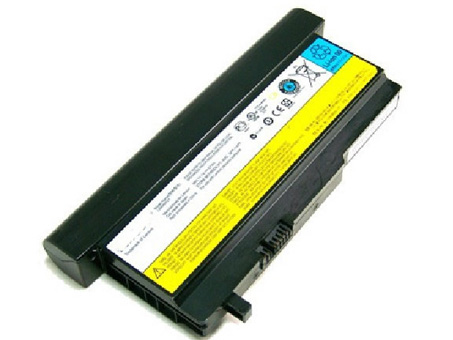
NZ:LENOVO L08M6D25 Battery
JP:L08M6D25バッテリーLENOVO新品互換用パソコン バッテリー、ACアダプタ、ご安心購入!
DE:L08M6D25 Akku Billiger Ersatzakku Lenovo K23 L08M4B21 L08M6D25 SeriesFit Models :
Lenovo K23 L08M4B21 L08M6D25Products Fast Shipping
Laptop power adaptors and chargers are necessary accessories that enable the charging of such portable devices. Adaptors and charges aren’t created equal, which is why you should always be looking for premium quality. Each of the Laptop Battery Express adaptors has been chosen because of its quality and affordability. You can rest assured that you’re getting access to some of the best replacement items on the market.
We have laptop power adaptors for a vast range of brands and models.Discover laptop power adaptors that will be just right for you.
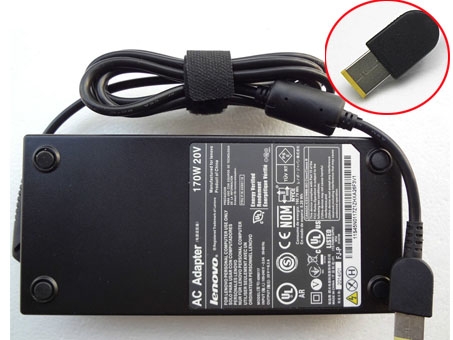
Adapter for 20V 8.5A 170W Lenovo ThinkPad W540 T540P
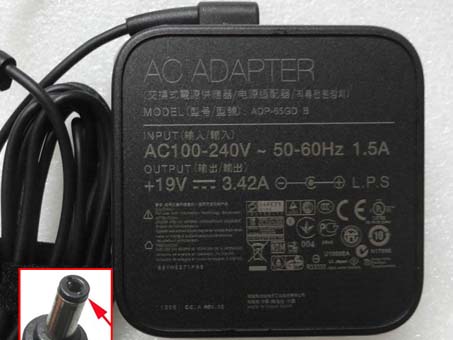
Adapter for Lenovo PA-1560-52LC ADP-65YB B
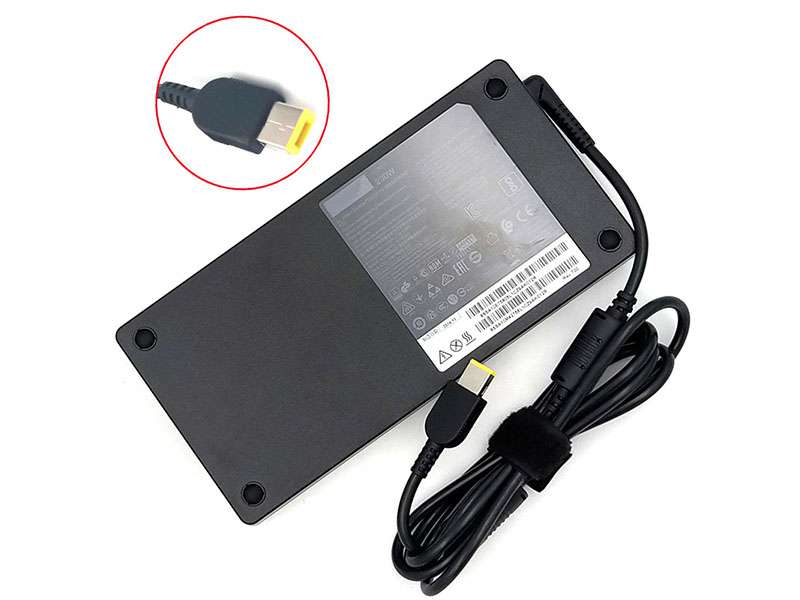
Adapter for Lenovo ThinkPad P70 P50 20ER000BIX 00HM626 ADL230NDC3A Notebook
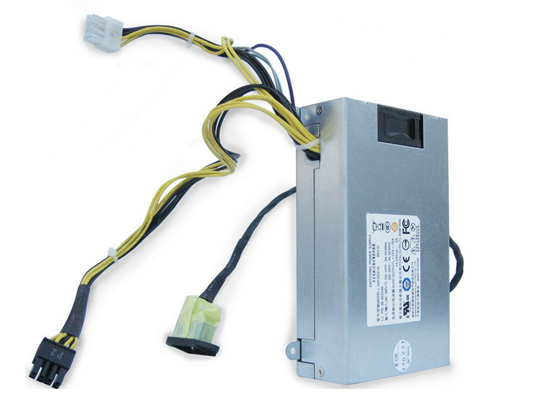
Adapter for Lenovo B325I B540 B320I B520E B320200W Power Supply
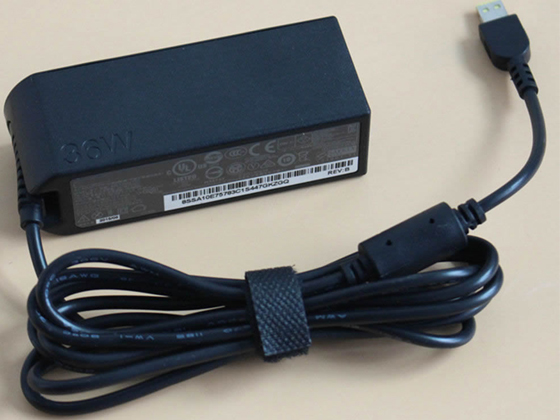
Adapter for Lenovo ThinkPad 10 20C1/20C3 TabletWhy order battery from us
No registration required.
We accept Visa, MasterCard, JCB Credit Card and Paypal.
Placing order is easy: Add To Cart—> Fill Shipping information—-> Check out—->Finished.
You are in Professional Laptop Battery (Replacements) online store.
Battery will be checked and tested for 2 times before sent out.Contact us is easy.
Your item will be tested 2 times before sent out.
12 months warranty and 30 days money back.
Same Day / The Next Day Fast Shipping.
You can write a review for our item and service.
http://www.notebookbattery.co.nz/laptop-batteies-lenovo/replace-battery-l08m6d25-b2586.htmTips To Extend Your LENOVO L08M6D25 Battery Life
Unplug the charger or remove the battery when not charging.
Keep device and battery in a cool dry place (heat destroys a battery).
Disable unnecessary programs that draw energy from your computer.
Shut down or use hibernate mode to minimize battery drain. -
11.1V 5200mAh HP HSTNN-IB99 HSTNN-XB99 NZ Notebook Battery Replace for HP Envy 13t 13t-1100 Series
Get your hp HSTNN-IB99 HSTNN-XB99 battery here at NotebookBattery.co.nz, we have a comprehensive directory of hp batteries. Our 11.1V 5200mAh hp laptop batteries are completely compatible with your HP Envy 13t 13t-1100 Series laptop or netbook.
11.1V 5200mAh HP HSTNN-IB99 HSTNN-XB99 NZ Notebook Battery Replace for HP Envy 13t 13t-1100 Series
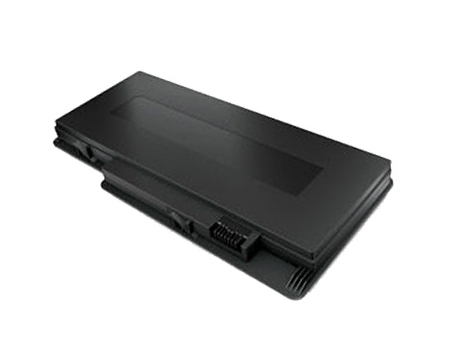
11.1V Hp HSTNN-IB99 HSTNN-XB99 notebook battery – New Zealand Store

- Availability: IN STOCK
- Chemistry:
- HPE2128
- Type :
- Li-ion
- Volt:
- 11.1V
- Capacity:
- 5200mAh
- Dimension:
- Color:
- black
- Condition
- Battery(Brand new)
Hp HSTNN-IB99 HSTNN-XB99 Battery Can Replace the Following Part Numbers:
Hp HSTNN-IB99 HSTNN-XB99 Replacement Battery Fits Models:
HP Envy 13 Series
Envy 13 Envy 13-1000 Envy 13-1001TX
Envy 13-1002TX Envy 13-1003XX Envy 13-1004TX
Envy 13-1005TX Envy 13-1006TX Envy 13-1007EV
Envy 13-1007LA Envy 13-1007TX Envy 13-1008TX
Envy 13-1010ER Envy 13-1015ER Envy 13-1030CA
Envy 13-1030NR Envy 13-1050EA Envy 13-1050EF
Envy 13-1050EG Envy 13-1050ES Envy 13-1099EO
Envy 13-1099XL Envy 13-1100 Envy 13-1940EZ
HP Envy 13t Series
Envy 13t Envy 13t-1000 Envy 13t-1100